Showing posts with label app. Show all posts

Friday, September 14, 2018

Digital Reflections and Explanations


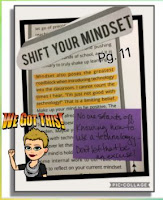
The last few years #BookSnaps with SnapChat has been all the rage. A BookSnap is a digital, visual representation used to explain/reflect on a book or excerpt. In a digital age where most students live, it's a way of engaging and connecting them to text. But what if you have younger students in which SnapChat, a social media-photo sharing tool is not the most appropriate?


Here are a few more options to get your students connecting with text and sharing what they've read with BookSnaps:

Google Slides
Google Drawings
Skitch


Creating a BookSnap is easy to do:
1. Have Text
2. Pick Appropriate Tech Tool
3. Snap a Pic
4. Highlight, Annotate, Sketch, add Stickers to Question, Reflect, Explain, Connect, or Clarify
5. Share

Check out our latest PD in your PJs, BookSnaps in Action or the following resources from #BookSnaps Expert, Tara Martin: #BookSnaps - Snap for Learning.


Thursday, November 30, 2017

Coding Apps for Hour of Code

Computer Science Education Week
December 4th - 10th


The skills used to learn coding are important to our future learners. Not only is it a booming job market, but is also great for supporting our SAISD Learner Profile: Creator, Critical Thinker, Collaborator, and Communicator. 

Blockly uses visual blocks that users can drag and connect to create codes. Blockly programming is used by many apps to teach coding to all ages. 

Here a few fantastic coding apps and sites to use during Hour of Code next week. 

Blockly Games teaches programming to children who have no experience with computer programming. 

Scratch from MIT is learning to code using visual blocks geared for ages 8-16, but can be used by anyone. It's free to join. Coders are able to create stories, games, and animations. 

ScratchJr from MIT is a free app that teaches younger children (ages 5-7) how to program. With their hands-on activities, children can program their own stories and games. 

Code.org is a wonderful website with curriculum, lessons, and activities for all ages.

Students can learn and practice the basics of coding with robots. 
Have a Dash? Dot? Check out these awesome apps: 
  • Blockly - Coding Challenges that teaches fundamental programming concepts
  • Wonder - includes 100's of challenges
  • Path - Path introduces children to sequences, events, and sensors through its simple draw, drag, and drop interface. Plan, program, and execute an adventure for Dash while learning fundamental concepts of computational thinking. *from WonderWorkshop
  How about OzoBots? Check out these amazing apps and games:
Want to see if Dash or Ozobot is a fit for your class? Contact EdTech with Howard and Feck and check out our DASH or Ozobots to use in your class for Hour of Code. 

Here's a STEM opportunity for Hour of Code from STEMFUSE
Fill out the form below to receive free Hour of Code Activities. 


Tuesday, May 9, 2017

Color Challenged? Solution Provided

Tech Tip Tuesday


Laura is constantly laughing and making faces when it comes to my background and font color choices in presentations or infographics. When it comes to design, I will admit it that I am color challenged. There's just too many choices, and I often like to color outside the box. 😀 

Here are a few extensions and apps that can assist all who are color changed when it comes to presentation designs. All can be found in the Chrome Web Store. 

Apps:

Color Picker - This site has ads that could be distracting for students. 

Image Color Picker - This one I like. I can load an image that I am using on my presentation and choose a color to use as my background, so that my background and image colors do not clash. Once the photo is loaded onto the site, you can pick a color. Then copy the color code and paste it into your presentation's custom background.

This is a video on how I use Image Color Picker. 


Tuesday, March 21, 2017

Adding Extensions and Apps in Chrome

Tech Tip Tuesday


Thank you to all who have been participating in our webinars that we began in November. We now offer two regular sessions ever Tuesday and Thursday at 4 PM (EdTech Talks) and again at 7 PM (PD in your Pajamas). In April we will not only offer our Tuesday and Thursday webinars, but are adding a few more on Mondays and Wednesdays at 4 PM. 
Be on the lookout for our April Newsletter coming out on Friday. The Newsletter will list all our available webinars in April. 
In our webinars today, participants looked at all the wonderful features that Chrome contains. Two features we explored were Chrome Apps and Extensions. 
Chrome Apps are web applications that run in Chrome. Almost like a quick link to the website. Apps are added to the Apps button on the bookmark bar located under the omnibox. 
A Chrome extension is something that adds functionality to a website or Google product. Extensions are placed to the right of the ominibox.

Here's how you can find and add extensions and apps to Chrome. 
1. Open Chrome and log-in to your SAISD Google Account. 
2. In the omnibox search for the Chrome Web Store. 
3. Once in the Web Store, you can search for extensions or apps by typing a key word in the search box or searching through the categories. 
4. Once you locate the app or extension you want, click the blue Add to Chrome button. 
5. A box will pop-up asking if you really want to add the app or extension. Click the  Add Extension or Add App button.

Here's a few that we recommend taking a look at: 
  • goo URL shortner - extension
  • Google Keep - app and extension
  • Google Classroom - app
  • Share to Google Classroom - extension
  • Print Friendly &PDF - extension
  • Screencastify - extension
  • Google Tone - extension
  • Kami - app and extension
  • Google Hangouts - app and extension
  • Read & Write for Google Chrome - extension

If you have an app or extension that you have added and just love, please tell us about it in the comment section. 


Monday, May 9, 2016

Stay Connected with Twitter

Summer is coming and I can't think of a better time to start using Twitter. If I could only pick one social media tool, I think it would be Twitter. Thank goodness I don't really have to choose.

Twitter can be accessed from any device, but I love how easy it is to use the Twitter app on my phone. I can view posts, send a tweet, upload an image and find people to follow all from my phone. 

Many people say they just don't "get" Twitter. Here's the best way I can describe it - global connections with others. 

Why do you need to connect globally?  Think about this - if you are on a campus with three other 3rd grade teachers and they are all great teachers - you have a nice little network to share ideas, find resources, get help. If you connect to thirty other 3rd grade teachers and they are all great teachers - you have a nice large network to share ideas, find resources and get help. There are great teachers all over the country (heck, just in Texas) that are doing awesome things and they are sharing them on Twitter. You have awesome ideas too and people want to hear about it. Share it on Twitter. 

If you're not sure how to get started - try this link.

Monday, April 11, 2016

Venn Diagram from Read, Write, Think

I love everything Read, Write, Think produces, so it was no surprise that I also loved the app Venn Diagram. It has a very user friendly interface for students so it doesn't take them long to be up and running. Students can create a 2 or 3 circle venn diagram and add items to each circle. Each item can also have a description so if students want to print out their creations, they will have two pages - one page with the diagram and items and another page with the items and descriptions.

Students can save their work if they don't finish in the allotted time because they have to create an account to get started. Don't worry, their account consists of their name only so you don't have to be concerned about complicated account creation. Students will have to go back to the same iPad to find their account because it is tied to the iPad. When students complete their work, they can save it to the camera roll or email it to the teacher.

Read, Write, Think also has a web version of the Venn Diagram program so if you don't have enough iPads for all of your kiddos, don't worry. They can grab a computer or Chromebook and get started.

Monday, September 14, 2015

Math Learning Center

Math Learning Center provides a variety of math apps for elementary students including Geoboard, Number Line, Pattern Shapes, Number Rack, Number Frames, Pieces, and Math Vocabulary. 

Each app uses a similar toolbar so moving between apps is easy for students. Just go to the App Store and search for Math Learning Center. All of the apps will show in the results list - install one or all of them! They're FREE!

Here are a few screen shots of the apps -