Showing posts with label google drive. Show all posts

Tuesday, January 3, 2017

Connect Google Drive to Your Laptop or Desktop

Tech Tip Tuesday


We all want an easier way to move and copy files from our computer to the cloud - Google Drive Sync makes that happen. Simply install Google Drive Sync from the Software Center (icon on your computer) to your desktop or laptop and then select what files to sync. This will make moving and copying files so much easier.

After the install is complete, open Windows File Explorer and you'll see your Google Drive listed in Favorites or Quick Access. To move a file from your computer just drag it to the Google Drive folder. To copy a file, hold down the Shift key while you drag the file.


An added bonus - changes you make while working in Google Chrome will automatically be made in your Google Drive housed on your desktop or laptop.

The video below will take you step-by-step on how to add your Google Drive onto your desktop and/or laptop. This will make moving documents from your SAISD I:drive and saving documents and images from an Internet search easier and faster.


*If you are unable to locate the Google Drive Sync in Software Center, please contact the Help Desk for further assistance. 

Tuesday, December 13, 2016

Edit Office Documents in Drive

Tech Tip Tuesday

You don't have to install Office to edit your Microsoft Word documents, Excel spreadsheets, or PowerPoint presentations. 

The following instructions are from G Suite Learning Center.
If you’re using a Chromebook or the most recent versions of the Docs, Sheets, and Slides apps on your phone or tablet, you can already edit Office files!
If you’re using a computer
  1. Download the Office Editing for Docs, Sheets & Slides Chrome extension.
  2. From Google Drive, double-click any Office file to start editing.

G Suite Learning Center offers tutorials and tips on many Google App products. You can even download cheat sheets. Check out this Google Doc cheat sheet. 

Wednesday, September 7, 2016

Step-by-Step Google App. Help is a Click Away


Google Apps Learning Center is dynamite.

This website is a guide full of tips and examples to help a new user get started and get the most out of their Google Apps for Education.

The step-by step directions are easy to follow. Moving from topic to topic is a breeze.


Tuesday, April 26, 2016

Get in Sync with Google Sync

Google has a sync option much like Microsoft O365. The sync allows you have a connection to your Google Drive directly from your Windows Explorer folder. This makes it much easier to move and copy files from your computer to your Google Drive. Here is a video that shows you how to set it up. 

Tuesday, March 29, 2016

Google Gooru Does it Again - Organizing Your Google Drive

There are so many great resources on the web - I love that I can rely on others to help in my quest to learn as much as I can about technology integration and making the technology work for me. 

Google Gooru is a perfect example of this. Their newsletter has great tips and videos to make me a better Google User. So in honor of sharing the knowledge, here's a great post from Google Gooru about Organizing Your Google Drive (something I really need to do).

Enjoy!

Tuesday, December 15, 2015

How to Stop Sharing Files in O365 & Google Drive

I love being able to share files with others without having to print something out or email it, but what if I want to stop sharing a document? How does that work?

If you are using O365 here's how you can turn off sharing - 

1. Log in to your O365 Account.
2. Go to OneDrive.
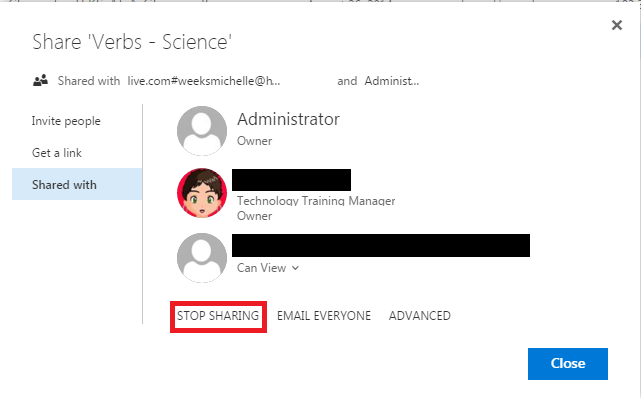
3. Right click on the file/folder > Share > Shared with.
4. If it's a folder you no longer want to share, you'll see who you are sharing with and their access. Click the down arrow next to their sharing rights and click stop sharing. If it's a folder, click the stop sharing option.

FILE SHARING VIEW
FOLDER SHARING VIEW


If you are using Google Drive here's how you can turn off sharing - 

1. Log in to your Google Drive Account (drive.google.com)
2. Right click on the file/folder > Share 
4. If you shared it with a link, click the drop down next to the link and click Off > Done. If you shared with a person, click the X next to their name > Done


SHARED WITH A LINK


SHARED WITH A PERSON

Tuesday, November 17, 2015

It's All About Sharing

One of the great things about Google Apps is the sharing capability. It's fast and it's easy.

Here's a link to instructions for sharing through Google Drive 

https://goo.gl/83PJmo