Installing fonts in Google Docs is a little different than installing fonts on your computer. Unlike your computer, you can't install any font you want - with Google Docs, you have a list of fonts to chose from - a very long list. With just a few clicks you can have new fonts installed and ready to be used in your Google Doc.
1. With Google Docs open, click on the font drop down.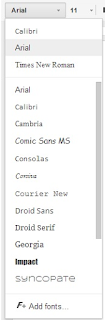
2. Click Add Fonts.
3. The Font Window shows a list of fonts that can be installed.
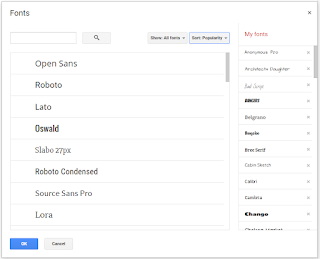
4. Click on the font name to add it to the My Fonts list.
5. To remove a font from your list, click the X next to the font name.
How's that for easy!!
I must admit, I'm addicted to fonts and I absolutely LOVE all of the different fonts to chose from on DaFont.com. This website provides you will thousands of different fonts organized by category.
Not all of the fonts are free, but many are -- so be sure to check the license agreement.
If you need help downloading and installing fonts to your computer, here's a step by step guide - Installing Fonts.
Some days I LOVE technology. One of those days was when I found out I could make my own handwritten font. This may not sound that wonderful to some people, but there is a special place in my heart for fonts and to be able to make one in my own handwriting was icing on the cake.
Use fontpaint.com to download the font template, fill in the alphabet blanks, scan it back to your computer and upload the scanned file to their website. Give it a few seconds and your font is ready to be downloaded and installed.
Check out this video to see how it works.
Thanks to for posting this on twitter.


