Showing posts with label google docs. Show all posts

Tuesday, March 7, 2017

Keep Google Doc Comments in Google Keep

Tech Tip Tuesday


Google Keep is a wonderful way to store your lists and notes. The comment feature in Google Docs is an effective feedback tool. Now that Google Keep is integrated into Google Doc, you can store a list of your comments in Google Keep and use them when needed in Google Docs.  Here's how it works:
1. Create your List of Comments in Google Keep
  • Go to keep.google.com to open the program. 
  • Create a new list
  • Create a Title for your Comments List. 
  • Type in your comments. If you already have comments in Google Docs, you can copy and paste those into your list. 
  • Create a label for your new list so you can quickly find it in Google Docs. 
2. Add your comments to Google Docs.
  • Open the Google Doc that needs feedback.
  • Click Tools>Keep Notepad - A panel will open on the right side of the screen. 
  • Click Search>Type in the title or label of your list - That list will now show in the panel. 
  • Open a Comment Box in the Student's Google Doc. 
  • Find the comment you need in the Google Keep Panel and copy and paste it into the Google Doc comment box. 

In the end, the combination of these tools will not only be a time saver to teachers, but also help provide a quick way for teachers to give meaningful feedback to students. 

Tuesday, February 14, 2017

Emojis in Google Docs

Happy Valentine's Day

Twitter Challenge Day 2: Reply to someone who used #sanangeloisdtweets17 in a tweet yesterday & introduce yourself. Include #sanangeloisdtweets17 in your reply.

Tech Tip Tuesday: 

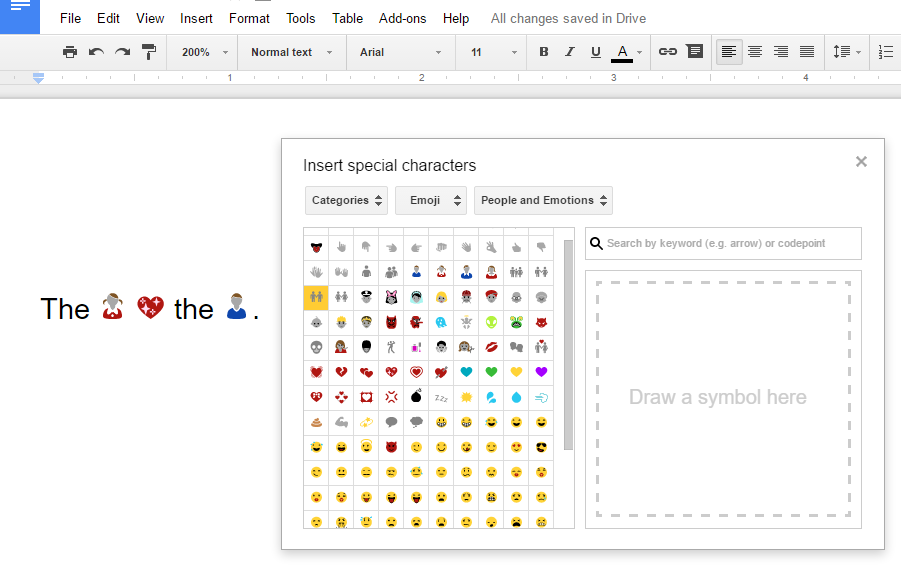
Emojis are a fun way for students to retell a story, design a pictograph, create a visual summary for a science experiment or historical event, or create a word problem with visual variables . 

To insert an emoji: Open a Google Doc>Insert>Special Characters>Choose Emoji from the drop down menu> 
Choose the Type of Emoji>
Click on the emojis you would like to insert.

Working with Emojis: An emoji in Google Docs is not an image, so you can't crop, rotate, or drag the handles to resize. Since an emoji is considered text, you must use the text tool features. Copy, cut, and paste or drag and drop to move the emoji in the document. To resize the emoji, select it and choose a font size from the font toolbar. 
Emojis are easy and fun to use in Google Docs.

And who knew that using this tool could also help prepare your students for a future job. I recently read an article in which a firm is seeking to hire an emoji translator. That's right an emoji translator. It seems that the emoji is the fastest growing language in some places. 

Tuesday, December 6, 2016

Save it as a PDF

Tech Tip Tuesday


There are a few advantages to saving documents and files as PDF. First, anyone, no matter the device used, can open a PDF. Second, it freezes your formatting and layout. Third, with programs like KAMI users can still annotate on the document while the original stays in its original format. 


To save a Microsoft Document as a PDF: Click File> Click Save As> Choose the Storage Location> File Name: Name your Document> File Type: In the drop down menu choose PDF> Click Save

To save a Google File as a PDF: Click File>Download as>PDF Document(.pdf)

It's that easy!

Tuesday, November 15, 2016

Permission to Access???

Tech Tip Tuesday

Are you receiving this message when clicking on a link to a google doc or google form when in your SAISD email?

Need Permission to Access

Try one of the three solutions below:
 

Solution Option 1:
*If Chrome is not your Default Browser follow the steps below*
  1. Open Chrome.
  2. Sign-in using your SAISD google account.
    • Username: firstname.lastname@saisd.org 
    • Password: ID#lastname or your network password
    • If your password still does not work, please contact help desk.
  3. Copy and Paste the form or document link  in your email into the omnibar. 
  4. Complete and Submit the Form.

Solution Option2: 
*Make Chrome your default browser.*
  1. Open Chrome.
  2. Sign-in using to your SAISD google account.
  3. Click on the More Menu(Options) 
  4. Click Settings.
  5. Scroll down to Default Browser 
  6. Click Make Google Chrome the Default Browser
  7. Click on the link from your email and it will now open in Chrome.
  8. Complete and submit the Form.

Solution Option 3:
*Make Chrome your default browser for Windows 10.*

  1. Open Chrome.
  2. Sign-in to your SAISD google account.
  3. Click on the More Menu (Options)
  4. Click Settings.
  5. Scroll down to Default Browser 
  6. A new window will open. Scroll down to Web browser and click on the Internet Explorer.
     
  7. Click on Google Chrome. 
  8. Close the Window.
  9. Click on the link in your email and it will open in Chrome. 
  10. Complete and submit the Form.

Tuesday, November 8, 2016

Voice Typing in Google Docs

Tech Tip Tuesday


Do you have students who don't know how to type or type slow? 

Google Docs has sped up the typing process with Voice Typing. It turns any words into text. 

It's a super easy way to put words on a document. Students can type, edit, and format with their voice in a Google doc. Because it also offers a variety of languages, students and teachers can translate documents. 


  1. Make sure you having a working microphone. *Chromebooks and ipads have built in microphones. Just make sure that they are enabled. 
  2. Open a New Google Doc or an Existing Google Doc. 
  3. Place your cursor where you want to type. 
  4.  Click Tools > Voice Typing
  5. Click the speaker icon and speak your text. 
    • Speak in a clear and normal voice
    • Speak any punctuation, spacing, or formatting 
    • Can even speak words for images. 
  6. When finished, click the speaker icon again. 
Click Here for a list of Voice Commands.

Please leave comments and share with us on how you and your students are using Voice Typing in your classroom. 


Monday, September 19, 2016

Do and Learn at the Same Time with Training for Google Apps

Late night working, assignment needs posting by morning, all help lines are closed for the night, and you need HELP.
You're not sure how to reschedule an assignment in Google Classroom, set an expiration date on a shared doc, or change the owner of a file. Don't worry the answers are an extension away.  


Training for Google Apps is a free extension that offers interactive lessons while you work on various Google Apps such as Classroom, Docs, Slides, Sheets, or Forms.


This useful tool is quite handy. It has answered many of my last minute questions. All you have to do is download the extension from the Chrome Web Store, open a Google App and click on the extension icon found to the right of the share button. A list of topics will pop-up, click on any topic and begin learning. It's that easy. Training for Google Apps answers many how-to questions through short, interactive, step-by-step videos. Now learning and doing at the same time is quick and easy.


Wednesday, September 7, 2016

Step-by-Step Google App. Help is a Click Away


Google Apps Learning Center is dynamite.

This website is a guide full of tips and examples to help a new user get started and get the most out of their Google Apps for Education.

The step-by step directions are easy to follow. Moving from topic to topic is a breeze.


Tuesday, May 17, 2016

REPOST - Convert a Google Doc to a Webpage

I originally posted this article on September 8, 2015. I think it's a great tip so I thought I would post it again in case anyone missed it.

Did you know you could convert any Google Doc to a Webpage in just a few clicks? Yes you can!

Here are the steps to make it happen - 


1. Open the Google Doc.


2. Click File > Publish to the Web.


3. Click Publish.


4. A link is created that you can copy and paste anywhere - your website, blog, wiki, etc. OR post it to Google+, Facebook or Twitter.


5. Make sure to select Published Content and Setting > Automatically republish when changes are made. If you update the Google Doc, your webpage is automatically updated!


6. If you ever need to unpublish the webpage, just open the doc, click File > Publish to the Web and then click Unpublish - it's that simple!


This would be a great way to publish an online newsletter for parents every month, make announcements to staff members or students, provide a quick list of website resources, post lesson plans, have students post writing assignments, etc.


How would you use this in your classroom? 

Tuesday, March 1, 2016

Like Magic - Convert Image of Text to a Google Doc

We've heard of being able to convert a PDF document to a Google Doc or a Word document, but I had never heard of converting an image to a Google Doc. 

I first saw this on a blog post from @thegooglegooru on The Gooru. It is A MA ZING! Be sure to sign up for his newsletter to get tips delivered right to your inbox. 

Here's a link to the blog post that shows you exactly how to do it.

https://www.thegooru.com/how-to-convert-images-of-text-into-editable-google-docs/

Tuesday, January 19, 2016

Images & Google Docs

Inserting an image into a document isn't rocket science, but there's a way to insert images directly from a Google Search while inside a Google Doc.

1. Open the Google Doc.
2. Click Insert > Image from the menu bar.
3. Click Search
4. Type in your search criteria. You can select to search Google, Life photo archives or Stock Photos.
5. Select a picture and click Select.

This makes it so much easier for students (and teachers) to find images. You don't have to do a separate Google Search - you can stay right in Google Docs (or Slides, Sheet or Drawing).

Tuesday, December 8, 2015

Math & Google Classroom

Math was never my best subject. Maybe that's why I sometimes struggle with ways to integrate technology and math. Don't get me wrong, there are some great apps and websites out there that help make it easier, but when I started working with Google Classroom I was at a loss for using this tool in the math classroom. 

Thank goodness I don't have to figure all of this out on my own. Technology provides us so many ways to gather and share information so always have others to help. Alice Keeler (@alicekeeler) recently posted 60 Ways Math Teachers Can Use Google Classroom on her blog. It's an excellent resource for math teachers that are interested in using technology to be more efficient and engaging in the classroom. While we're at it, here's another post from Alice - 5 Ways Students Can Use Google Docs in Math

If you're a math teacher and you have some great integration ideas, please share!

Tuesday, November 10, 2015

Installing Fonts in Google Docs

Installing fonts in Google Docs is a little different than installing fonts on your computer. Unlike your computer, you can't install any font you want - with Google Docs, you have a list of fonts to chose from - a very long list. With just a few clicks you can have new fonts installed and ready to be used in your Google Doc.

1. With Google Docs open, click on the font drop  down.


2. Click Add Fonts.

3. The Font Window shows a list of fonts that can be installed.


4. Click on the font name to add it to the My Fonts list.

5. To remove a font from your list, click the X next to the font name.

How's that for easy!!

Tuesday, October 27, 2015

Research Tool in Google Docs

Google Docs provides one of the best tools for students when it comes to conducting research and developing research papers and reports. The research tool in Google Docs allows students to conduct research from inside their document. It also allows them to cite their sources in APA, MLA or Chicago formats. Citing also includes pictures.

Take a look at this short YouTube video to see how easy it is to use the research tool in Google Docs (you may have to turn up the volume on your computer, her voice is very soft).

Tuesday, September 8, 2015

Convert a Google Doc to a Webpage

Did you know you could convert any Google Doc to a Webpage in just a few clicks? Yes you can!

Here are the steps to make it happen - 

1. Open the Google Doc.

2. Click File > Publish to the Web.

3. Click Publish.

4. A link is created that you can copy and paste anywhere - your website, blog, wiki, etc. OR post it to Google+, Facebook or Twitter.

5. Make sure to select Published Content and Setting > Automatically republish when changes are made. If you update the Google Doc, your webpage is automatically updated!

6. If you ever need to unpublish the webpage, just open the doc, click File > Publish to the Web and then click Unpublish - it's that simple!

This would be a great way to publish an online newsletter for parents every month, make announcements to staff members or students, provide a quick list of website resources, post lesson plans, have students post writing assignments, etc.

How would you use this in your classroom?