Showing posts with label chromebook. Show all posts

Friday, September 1, 2017

Getting In & Out of Chrome

Fabulous Friday To Everyone!

Beginning of school means logging into Google Chrome and getting Googley with all the fantastic tools and resources for teachers and students. Here's how to quickly and easily sign in to Chrome on a laptop, desktop, or Chromebook. 

Steps to properly sign in and out of Chrome on a laptop or desktop:


Steps to sign in on a school Chromebook: 
1. The Chromebook will automatically open to a sign-in screen. 
2. Type in username(email). Click Next.
3. Type in password. Click Next.
4. You're IN!

Steps to sign out on a school Chromebook. 
1. Click the Red Sign out Button on the task bar towards the bottom left corner of the screen. * Thank you, Mr. Zapata from technology for putting this on all Chromebooks in the district.* 
 

Tuesday, April 25, 2017

Navigating Tips for a Chromebook

Tech Tip Tuesday

Chromebooks are a wonderful tool for the classroom. In appearance, they look a lot like a laptop, but if you look close there are some differences. Here's a few tips to help you and your students navigate while working on a Chromebook.

To Move the Pointer: Move one finger across the touchpad. 

To Select/To Left Click: Tap the the touchpad with one finger. 

To Right-Click: Tap the touchpad with two fingers or hold down the ALT. key while tapping once on the touchpad. 

To Scroll: Move two fingers up and down the touchpad to scroll vertically and left and right to scroll horizontally. 

Move between Open Tabs: Swipe three fingers back left or right to move between all open windows. 

Drag and Drop: Click and hold down the item you want to move with one finger. With a second finger, move the item. Release both fingers to drop the item at its new location.

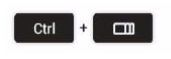
Take a Screenshot: 


Toggle Caps Lock Off and On: 


Delete Key: 


If you have a tip, please share it in the comment box. 

Monday, November 7, 2016

Fun Way to Explain Everything

Mobile App Monday


The Explain Everything app is a must have for all classrooms. This app is a collaborative interactive whiteboard that can be used to literally explain any and everything. 

Explain Everything is an easy-to-use collaborative tool that gives students the opportunity to share their knowledge and understanding of curriculum concepts. Students can annotate, animate, narrate, record and then share.


Here are just a few of the features in the app - 

- Writing tools - draw, shapes and text
- Laser pointer
- Insert images, videos or audio files
- Create math equations
- Edit (rotate, move, scale, flip, copy, paste, clone) any object
- Record everything you do within the app
- Record yourself with the front facing camera
- Export projects in numerous formats
- Post projects to Evernote, OneDrive, Google Drive, Dropbox, YouTube and more.


It's well worth it for the low price of $5.99 in the app store or google play store. 
Explain Everything is also available for Chromebooks for $2.99 per user. 
Click HERE to view ipad tutorials from Explain Everything on YouTube.