Installing fonts in Google Docs is a little different than installing fonts on your computer. Unlike your computer, you can't install any font you want - with Google Docs, you have a list of fonts to chose from - a very long list. With just a few clicks you can have new fonts installed and ready to be used in your Google Doc.
1. With Google Docs open, click on the font drop down.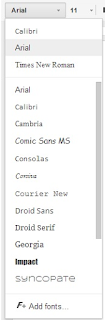
2. Click Add Fonts.
3. The Font Window shows a list of fonts that can be installed.
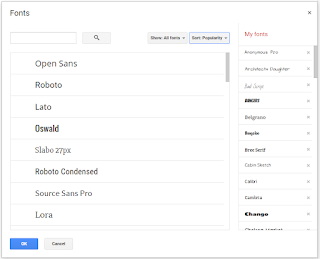
4. Click on the font name to add it to the My Fonts list.
5. To remove a font from your list, click the X next to the font name.
How's that for easy!!
Write About This is a visual writing prompt & creation platform. Students can select from hundreds of images and prompts to create that perfect writing passage.
Write About This has three levels of prompts so students can start of with level one move up to level three. There is an option for voice, so the prompt can be read to the student. There's even a place to record your voice if that works best for students. Students can save their completed work to the Camera Roll on the device or share through email.
This app isn't free - it has a price tag of $3.99, but it's well worth it. There is a free version you can download if you want to try it out first.
Here's an Eduphoria Quick Tip -
When you sign your observation and your summative during the school year, you are required to enter the answer to your security question. If you can't remember the answer or if it just doesn't accept the answer typed in, you can reset the security question and the answer.
Here's what you need to do -
1. Log in to Eduphoria and click My Profile.
 2. Click the Next button until you see the security question window.
3. You can use the same security question that is listed, or you can click the drop down arrow next to the question and change it.
4. Enter your answer in the answer box. Type your answer in all lowercase letters - it's easier to remember that way.
5. Continue to click Next until you reach the last window. Click Save Changes.
I talked about Adobe Voice in the last Mobile App Monday post, so I thought it only made sense to talk about Adobe Slate in this Monday's post.
Adobe Slate is a free iPad app that gives you easy to use tools to create the most stunning multimedia product. You upload your pictures and type in your text to tell your story.
Here's a quick video to explain Adobe Slate.
This is a great tutorial that walks you through the app step by step. Create something beautiful today!


