

Friday, January 1, 2016

Friday, December 25, 2015

Wednesday, December 16, 2015
Create Multiple QR Codes at One Time

A Few Ways to Use QR Codes in the classroom -
1. Link to a tutorial video online.
2. Access to a website.
3. Text instructions.
4. Listen to an audio file posted on a website.
5. Link to student created content.
Tuesday, December 15, 2015
How to Stop Sharing Files in O365 & Google Drive

If you are using O365 here's how you can turn off sharing -
1. Log in to your O365 Account.
2. Go to OneDrive.
3. Right click on the file/folder > Share > Shared with.
4. If it's a folder you no longer want to share, you'll see who you are sharing with and their access. Click the down arrow next to their sharing rights and click stop sharing. If it's a folder, click the stop sharing option.
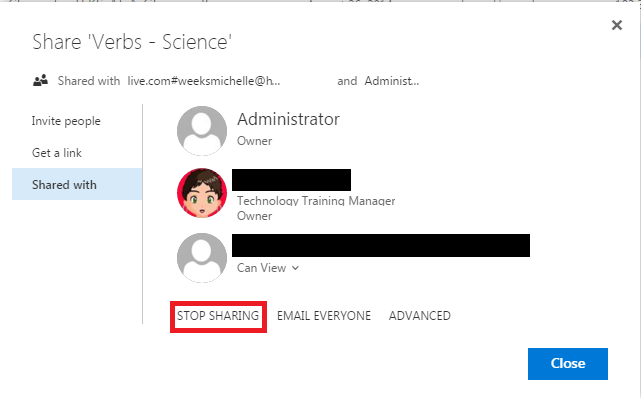 |
| FILE SHARING VIEW |
 |
| FOLDER SHARING VIEW |
If you are using Google Drive here's how you can turn off sharing -
1. Log in to your Google Drive Account (drive.google.com)
2. Right click on the file/folder > Share
4. If you shared it with a link, click the drop down next to the link and click Off > Done. If you shared with a person, click the X next to their name > Done.
 |
| SHARED WITH A LINK |
 |
| SHARED WITH A PERSON |
Monday, December 14, 2015
Not the Same Old Notes App

1. Set up folders to keep your notes organized and save them all to iCloud so you can access your notes from anywhere.
2. Attach photos and videos your notes. Just tap the camera icon and select what you want to insert.
3. The new app has a drawing tools that lets you put your doodles right into the note.
4. Easily create a checklist within your note. Click on the checklist icon and start making that list.
5. Insert a web link into a note. Click the share icon at the top of the screen and select Notes. Select the note you want it to go in or you can create a new note.
6. Insert directions into a note. Click on the share icon at the top of the screen and select Notes. You can put it right into one of your notes - you'll never have to dig for directions again.
Overall, I like what's been done to the Notes app - a big improvement over the the original.

Subscribe to:
Posts (Atom)