Storehouse is a free app that lets you and your students turn a group of photos and videos into a story.
It's easy to use, works on iPads and iPhones and did I mention it's free?
Here's how it works -
- Select the photos and videos from your camera roll - up to 50 (you can also select from Instagram, Flickr or Dropbox).
- Add headings, quotes and text to images.
- Resize and move images to create image groups.
Once you've created your collage/story/album, share it. Just tap the share option to see a weblink to your creation and the option to allow others to save your pictures to their camera roll. You can also send it via imessage, email or post to other apps.
Students and teachers could quickly share photos and videos of classwork, tutorials, projects, and more!
I love being able to share files with others without having to print something out or email it, but what if I want to stop sharing a document? How does that work?
If you are using O365 here's how you can turn off sharing -
1. Log in to your O365 Account.
2. Go to OneDrive.
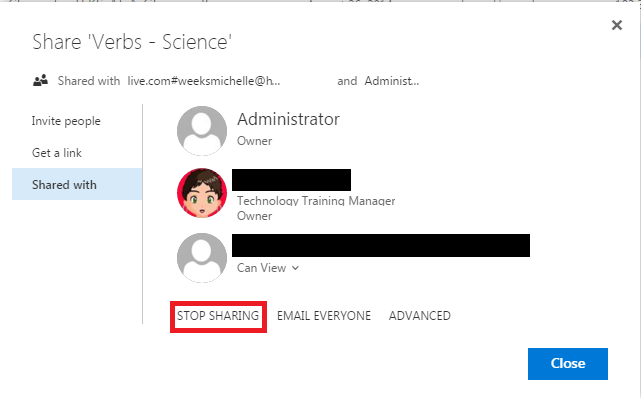
3. Right click on the file/folder > Share > Shared with.
4. If it's a folder you no longer want to share, you'll see who you are sharing with and their access. Click the down arrow next to their sharing rights and click stop sharing. If it's a folder, click the stop sharing option.
 |
| FILE SHARING VIEW |
 |
| FOLDER SHARING VIEW |
If you are using Google Drive here's how you can turn off sharing -
1. Log in to your Google Drive Account (drive.google.com)
2. Right click on the file/folder > Share
4. If you shared it with a link, click the drop down next to the link and click Off > Done. If you shared with a person, click the X next to their name > Done.
 |
| SHARED WITH A LINK |
 |
| SHARED WITH A PERSON |
One of the great things about Google Apps is the sharing capability. It's fast and it's easy.
Here's a link to instructions for sharing through Google Drive
https://goo.gl/83PJmo