Showing posts with label extensions. Show all posts

Tuesday, May 9, 2017

Color Challenged? Solution Provided

Tech Tip Tuesday


Laura is constantly laughing and making faces when it comes to my background and font color choices in presentations or infographics. When it comes to design, I will admit it that I am color challenged. There's just too many choices, and I often like to color outside the box. 😀 

Here are a few extensions and apps that can assist all who are color changed when it comes to presentation designs. All can be found in the Chrome Web Store. 

Apps:

Color Picker - This site has ads that could be distracting for students. 

Image Color Picker - This one I like. I can load an image that I am using on my presentation and choose a color to use as my background, so that my background and image colors do not clash. Once the photo is loaded onto the site, you can pick a color. Then copy the color code and paste it into your presentation's custom background.

This is a video on how I use Image Color Picker. 


Tuesday, March 28, 2017

Google Classroom - Add-ons and Extensions

Tech Tip Tuesday

Google Classroom offers so much more than just helping classes go paperless. It is a tool that fits perfect with TTESS since it's all about the students. Google Classroom can store vital classroom resources, is appropriate for diverse learners, and offers students a way to think critically, be creative, collaborate, and communicate. 

Here are a few extensions and add-ons to help teachers and students get the most out of Google Classroom. 


Share to Classroom is a Chrome extension that makes it easier for students and teachers to share web sources with each other. 


These next add-ons and extensions are from Alice Keeler. If you haven't visited her website, do so now. It is a must. She is a Google Classroom guru. Mrs. Keeler has also co-written two books on everything Google Classroom. When she realized Classroom didn't do all that she needed it to do for her and her students, she learned to code and started scripting add-ons and extensions. Here are a few that are specific to or work well with Google Classroom. 

Extension: 
Screen Split - It will split the Google Classroom and student work into side-by-side screens enabling students to view assignment directions and resource links while working. 
QuickShare - Screenshot: Enables teachers to quickly give feedback to students. 

Add-On: 
RubricTab - *Mrs. Keeler also has a rubric template that can be used with this add-on. 
Group Maker - Randomly assigns students to groups. 

Don't forget to join us for one of our webinars today featuring Google Classroom. 
4 PM EdTech Talks - saisd.org/edtechtalks 
7 PM PD in your Pajamas - saisd.org/pdinyourpjs

Tuesday, March 21, 2017

Adding Extensions and Apps in Chrome

Tech Tip Tuesday


Thank you to all who have been participating in our webinars that we began in November. We now offer two regular sessions ever Tuesday and Thursday at 4 PM (EdTech Talks) and again at 7 PM (PD in your Pajamas). In April we will not only offer our Tuesday and Thursday webinars, but are adding a few more on Mondays and Wednesdays at 4 PM. 
Be on the lookout for our April Newsletter coming out on Friday. The Newsletter will list all our available webinars in April. 
In our webinars today, participants looked at all the wonderful features that Chrome contains. Two features we explored were Chrome Apps and Extensions. 
Chrome Apps are web applications that run in Chrome. Almost like a quick link to the website. Apps are added to the Apps button on the bookmark bar located under the omnibox. 
A Chrome extension is something that adds functionality to a website or Google product. Extensions are placed to the right of the ominibox.

Here's how you can find and add extensions and apps to Chrome. 
1. Open Chrome and log-in to your SAISD Google Account. 
2. In the omnibox search for the Chrome Web Store. 
3. Once in the Web Store, you can search for extensions or apps by typing a key word in the search box or searching through the categories. 
4. Once you locate the app or extension you want, click the blue Add to Chrome button. 
5. A box will pop-up asking if you really want to add the app or extension. Click the  Add Extension or Add App button.

Here's a few that we recommend taking a look at: 
  • goo URL shortner - extension
  • Google Keep - app and extension
  • Google Classroom - app
  • Share to Google Classroom - extension
  • Print Friendly &PDF - extension
  • Screencastify - extension
  • Google Tone - extension
  • Kami - app and extension
  • Google Hangouts - app and extension
  • Read & Write for Google Chrome - extension

If you have an app or extension that you have added and just love, please tell us about it in the comment section. 


Tuesday, April 12, 2016

The Life of a Google Doc Using the Draftback Extension

I just recently found out about the extension - Draftback. Basically this extension allows you to see the life of a Google Doc - from start to finish and with all the revisions in between. 

Here's how to get started - 

1. Install Draftback from the Chrome Web Store and it will appear in the top right corner of your Chrome browser next to the Omnibox (It's a gray box with a D). 

2. Open a Google Doc and and then click the Draftback button in your document. 


3. Draftback will process the revisions. When it is complete, click View.


4. A new tab will open with the Draftback version of the document and it will begin playing automatically. You can pause it at anytime. You can also use the slide bar to increase or decrease the speed. 


This is a great tool for teachers and students. Teachers and students can see document revisions to help better understand the student's writing process. Teachers can also see the total revisions in a document and what content was used to create it.

One final note - In order to use Draftback on a document, you have to have editing rights.

Tuesday, February 16, 2016

Say Goodbye to Long URLs - Google URL Shortener to the Rescue

Say Goodbye to Long URLs - 
Google URL Shortener to the Rescue

How many times have you asked your students to type in a URL only to be interrupted 20 times because it is typed incorrectly? Long URLs are difficult for everyone, so let's make things simple. Goo.gl URL Shortener extension takes long URLs and makes them easier to use.


How does it work?
1. Install the Goo.gl URL Shortener from the Chrome Web Store (https://goo.gl/48P6S).

2. Access a website that needs to be shortened and click the Goo.gl extension next to the omnibox at the top of the browser window.

3. The shortened URL will appear. Click the Copy option to copy the URL or just write it on the board for your students to see.

4. You can also get a QR code for the URL. Just click QR Code and then copy and paste the code into a Google Doc so you can print it out for students.

Need more help? Here's a video to walk you through the process - https://youtu.be/UOQfT93y6eA

Tuesday, January 26, 2016

One Tab Extension

Using Chrome without extensions is like eating pancakes without syrup. It's still good, but it could be so much better.

One of my favorite Chrome extensions is OneTab. This extension lets you covert multiple open tabs into a single tab list. When you are ready to open them back up, you can restore them all or one at a time. This tab can be saved, sent as a web page and it will give you a QR code to post.

At first glance, this might not seem like such a big deal, but think about how nice this would be for students. If you want them to review a certain list of websites, you don't have to copy and paste the web links into a separate document and print it out or post it online somewhere. You can just give them a single website or QR code to access all of the websites.

This is a screenshot of 4 tabs put into a single tab using the OneTab extension.


This is a screenshot of the same 4 tabs shared as a webpage with the optional QR Code.


If the website name is too long for your students, use the Google URL Shortener extension. 
(We'll talk about that one next week)

To install the OneTab extension - 
1. Click on the apps link in your browser, go to the Web Store and search for OneTab. 
2. Click Add to Chrome and the extension will be added to Chrome next to the Omnibox at the top of the browser (it looks like a funnel).

Tuesday, November 24, 2015

Google Extension - Goo.gl URL Shortner

The Goo.gl URL Shortner not only makes long URLs shorter, it also gives you an option for a QR Code. I love this! It's so easy to use - just install the extension from the Web Store through your Chrome browser. The extension will appear at the top of your browser next to the Omnibox.

Just navigate to the website you want to shorten, then click the extension. It will provide you with the shortened URL and the QR code. Right click on the QR code to copy it - then you can paste it anywhere you want it.

Tuesday, October 13, 2015

Using the Clearly Extension in Chrome

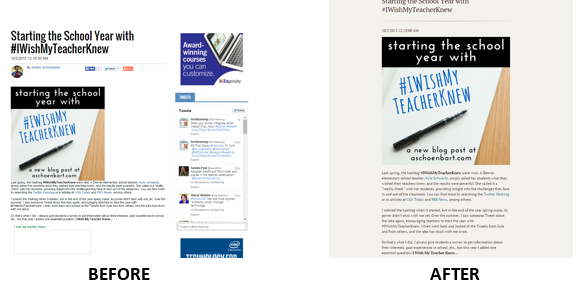
Many of websites we view have numerous advertisements, additional search ideas and other related articles for us to review. All of the distractions on a site can be a bit overwhelming -- that's where Clearly comes in to save the day. 

By using the Clearly extension in chrome, you get rid of all the distractions on the page so you can focus on the content of the article you are reading. Take a look at the two images below. The one on the left is before Clearly and the one on the right is after.


I think we can agree that the one on the right is much easier to read.


Many of us get distracted when we are online -- so do our students. Using the Clearly extension to help us remove those distractions is a must. Just go to the Web Store and search for Clearly - by evernote.com