Friday, September 28, 2018

Design Resources for that Fun, Fresh, Professional Look

If you weren't at Tuesday's PD in Your PJs, you missed an amazing time with our guest host, Mrs. Rodriguez from Central High School. But don't panic, you can still check out the amazing resources, tips and tricks that she shared by viewing the webinar recording. As you and your students begin to publish work that goes beyond the classroom walls, these tools will help to make sure that all finished products look fun, fresh and professional.

Here are just a few resources that you'll hear more about and see in action in the recording.
Color *If you are as color changed as I am, these tools will have you matching colors in no time. 😀
Color Swatch Generator
100 Color Combos
 
ColorZilla (Chrome Extension)

Fonts

Text Animators
Text Animation: Textanim.com
Scrolling Text Sign: Signbot
Typewriter GIF: Screedbot

See these tools and so much more!


Friday, September 14, 2018

Digital Reflections and Explanations


The last few years #BookSnaps with SnapChat has been all the rage. A BookSnap is a digital, visual representation used to explain/reflect on a book or excerpt. In a digital age where most students live, it's a way of engaging and connecting them to text. But what if you have younger students in which SnapChat, a social media-photo sharing tool is not the most appropriate?


Here are a few more options to get your students connecting with text and sharing what they've read with BookSnaps:

Google Slides
Google Drawings
Skitch
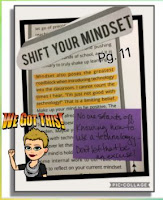

Creating a BookSnap is easy to do:
1. Have Text
2. Pick Appropriate Tech Tool
3. Snap a Pic
4. Highlight, Annotate, Sketch, add Stickers to Question, Reflect, Explain, Connect, or Clarify
5. Share

Check out our latest PD in your PJs, BookSnaps in Action or the following resources from #BookSnaps Expert, Tara Martin: #BookSnaps - Snap for Learning.


Friday, August 31, 2018

Screencasting for Teachers & Students

Students love watching and making videos. So, why not use that interest to promote and enhance learning? With today's screencasting tools, making videos are easier than ever. 
Screencasting is the process in which a screencasting tool captures and records everything that is happening on your computer screen while you narrate. 


Benefits of Screencasting: 

  • Caters to a variety of learning styles: Audio, Visual, Kinetic
  • Visual & Audio Feedback for Student's Digital Work
  • Student Centered
  • Personal & Self-Paced Learning
  • Engaging & Authentic Learning Experiences
  • Gets Students Communicating and Creating
  • Students can Learn and Review 24/7
  • Reinforces Concepts, Topics, Objectives
  • Improves Retention
  • Flipped, Blended, or Online Learning Options


Ideas for Screencasting: 


Tips before Screencasting:

  1. Plan, plan, plan - Planning is so important and time saving. Create a storyboard or dialogue of what you will do on the screen and say while recording.
  2. Practice - Many of the free screencasting tools do not offer edit features and limit record time. 
  3. Prepare -Get your area ready that you will use for recording: quiet, nice lighting, etc. Get your screen ready that you will use for recording: open all necessary materials, check sound, close windows/tabs not used, etc. 
  4. Perform - Record, Watch, Post/Share, and have FUN!

Screencasting Tools to Try:


Resources:
Ruffini, M. (2018). Screencasting to Engage Learning. [online] EDUCAUSE Review. Available at: https://er.educause.edu/articles/2012/11/screencasting-to-engage-learning [Accessed 30 Aug. 2018].


Wolpert-Gawron, H. (2018). The Ultimate Screencasting Guide for Teachers and Students. [online] tween teacher. Available at: http://tweenteacher.com/2016/11/11/the-ultimate-screencasting-guide-for-teachers-and-students/ [Accessed 30 Aug. 2018].

Monday, August 20, 2018

Back-to-School Ideas

Ideas with a Technology Twist


Turn your first day of school from dull to OH YEAH! 😎
Here are a few ideas to get students eager, energized, and excited for the new school year. 

From Kasey Bell & Shake Up Learning: "Back to School with GSuite: 6 Activities for the Classroom"
  • Google Forms to create Student Interest Surveys
  • Google Slides to create Vision Boards
  • Google Keep to set learning goals
  • Google Experiments to play an Emoji Scavenger Hunt
  • Check out Kasey's FREE template to create magnetic poetry * This fun template can be used all year long to reinforce vocabulary skills.
  • Follow Kasey's step-by-step directions to design and create a custom Google Classroom header.
Other ideas:

Have other FUN ideas for the beginning of school? Please share yours in the comment section. 


Monday, August 6, 2018

Welcome Back!


EdTech with Howard and Feck are excited about the new school year!  

We look forward to sharing technology integration ideas and strategies here at "THE CLICK". We can't wait to see all the wonderful ways that you and your students use technology to enhance and transform learning this year.